Free AI Video: A Beginner’s Guide from One Photo
Learn to make your first AI video from a coffee photo, with practical tips on free credits, prompts, editing, and export checks.
Want a product clip, a little movement in a travel photo, or a way to bring an idea to the screen without buying equipment and subscriptions first? Free AI video can be a useful starting point. Try one simple shot from text or an image before investing more time.
Your first project does not need to look like a blockbuster. One subject, one action, and one purpose make results easier to judge than a scene packed with people, transitions, and effects. Let’s use a cup of coffee to work through the process.
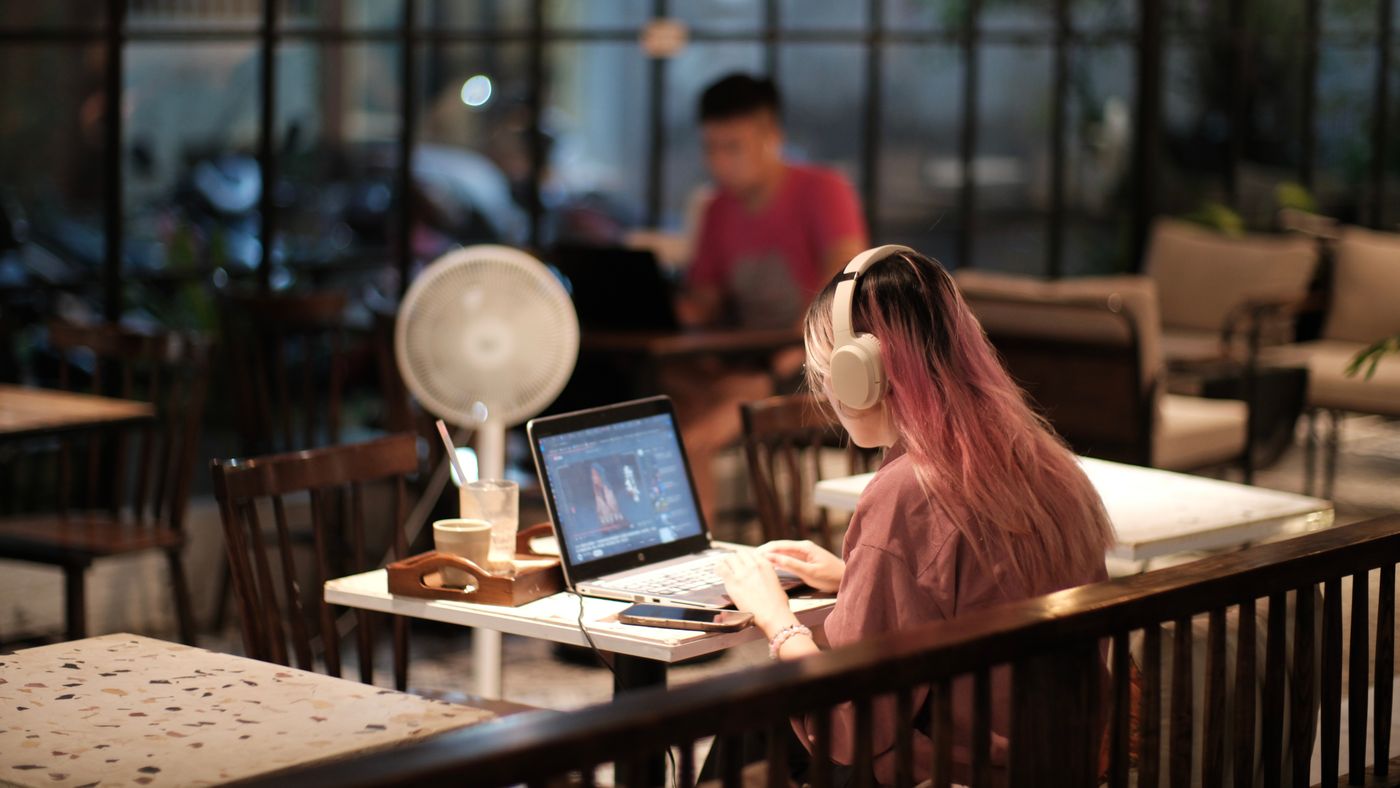
Editing video on a laptop in a café · TBD Tuyên / Pexels
1. Check what “free” includes
Before starting, check the tool’s current allowance, generation cost, and limits on duration, resolution, watermarks, and downloads. Free registration does not mean every model generates for free or allows unlimited use. Follow the rules shown on the generation page and make sure you have enough credits for a short test.
For commercial work, check the tool’s terms and the permissions for images and music separately. This avoids finishing a video you cannot export or use as intended. This guide does not promise permanently free access to any model or a usable result on the first attempt.
2. Start with an image when you have one
With only an idea, describe the subject and setting in text. With a product or landscape photo, try image-to-video so the photo provides a composition reference. Choose a clear image with a complete subject and a simple background. Leave room for camera movement and captions.
A coffee photo with a stable cup and natural light is enough for practice. Avoid requesting a person to pick it up, pour milk, and turn around in one shot. If the image contains text, logos, or complex hands, inspect those areas carefully afterward.

Coffee on a wooden table as a composition reference · Maria Orlova / Pexels
3. Say exactly what should move
Organize a prompt as subject, action, setting, camera, and constraints. Instead of repeating “premium,” “stunning,” or “cinematic,” describe what changes and where the camera moves. Try this simple example:
A white coffee cup on a wooden table, with steam rising slowly and soft side light on the rim. The camera gently pushes forward. The cup and table remain stable. Natural, realistic style, with no added text or extra objects.
This is a creative instruction, not a guaranteed result. If the subject wobbles, try a fixed camera. If the frame is busy, remove secondary actions. Use a separate negative prompt when supported; otherwise state unwanted changes briefly in the main description.
4. Turn one shot into a short video
Open Omni video generation, check available models, input modes, and costs, and choose an option that supports reference images. Upload a photo you have permission to use. Select a short supported duration and an aspect ratio suited to your intended placement, then enter your prompt.
Watch the entire first result before trying again. Does the rim deform? Does the table texture flicker? Is the push too fast? Change the clearest problem first and compare versions. Keep the useful section, trim unstable ends in an editor, and add a short line such as “Make room for a slower moment today.”
5. Spend free credits on useful tests
Keep the reference image and duration unchanged while adjusting one variable, such as camera speed or lighting. Record prompts and settings to understand what helped instead of repeatedly guessing.
Avoid testing many models at once or chasing maximum resolution immediately. Establish usable composition and movement first. Add captions, prices, and brand names in editing for better control over spelling, placement, and readability.
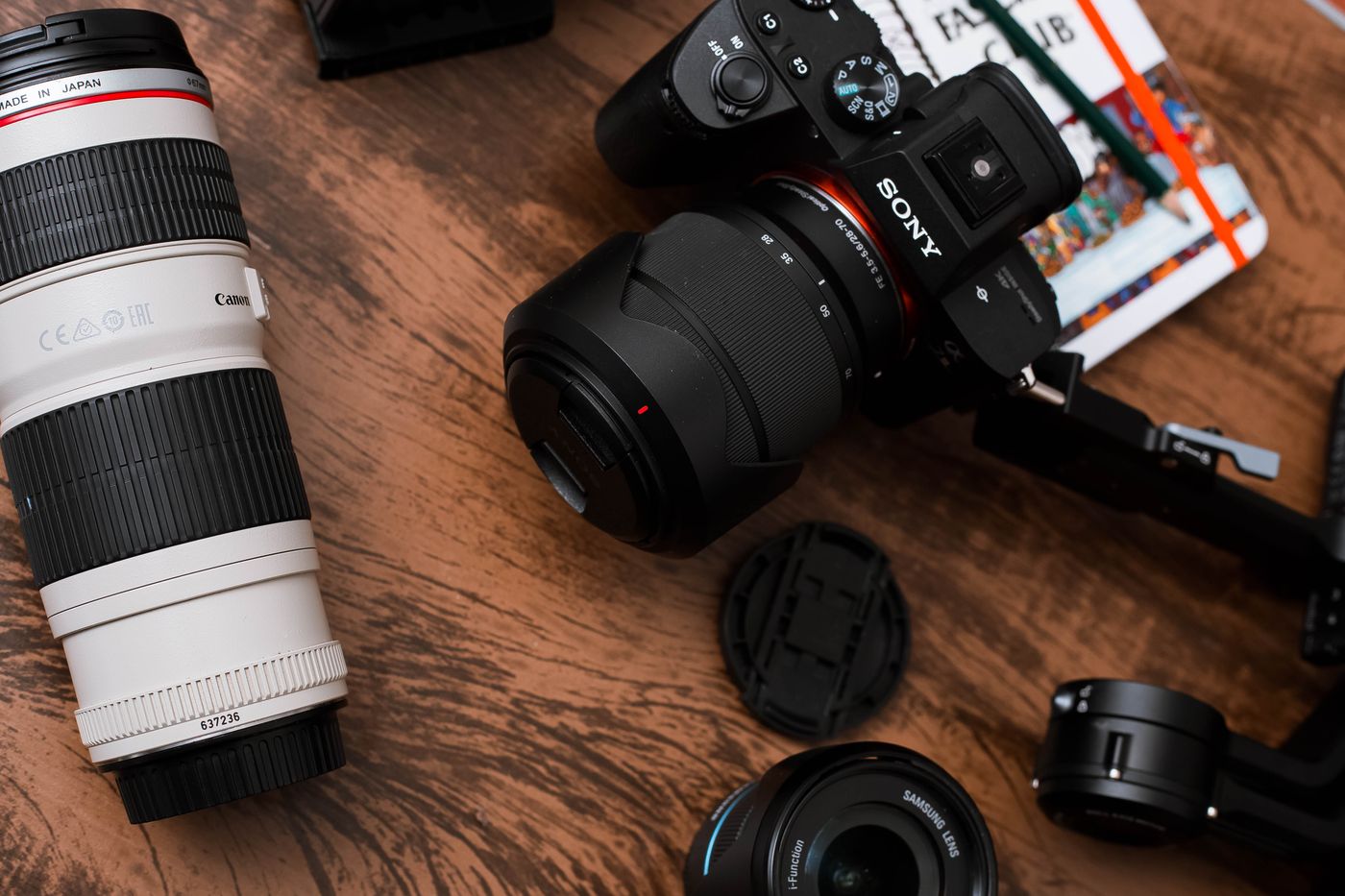
Cameras and lenses illustrating shot planning · Wallace Chuck / Pexels
6. Watch the complete edit before export
Check subject consistency, unexpected objects, flicker, and unnatural changes. On a phone, make sure interface elements do not cover captions and music does not overpower speech. For real people, brands, or commercial use, confirm appropriate permissions and follow the publishing platform’s AI labeling requirements.
Finally, can viewers understand the idea at a glance? Free AI video offers a way to test ideas at a lower cost. Turn one image into a clear, stable, useful shot before adding complexity. Start with a short shot on Omni.
All three illustrations are Pexels stock photos showing creative contexts, not Omni-generated results or endorsements by the people or brands pictured.